Journeys and share codes
A journey guides you to several places, one after another. When you reach a stop, Lodestar moves on to the next one by itself.
Plan a journey
Section titled “Plan a journey”- Open Places, select a place on Saved or Recent, and press Add to journey. Lodestar says “Added” with the place’s name. Repeat for each stop.
- Open the Journey tab. Your stops are numbered in order.
- Select a stop to Move up, Move down or Remove it. You can also Guide here to go to that one stop, or Save as a place.
- Press Start journey.
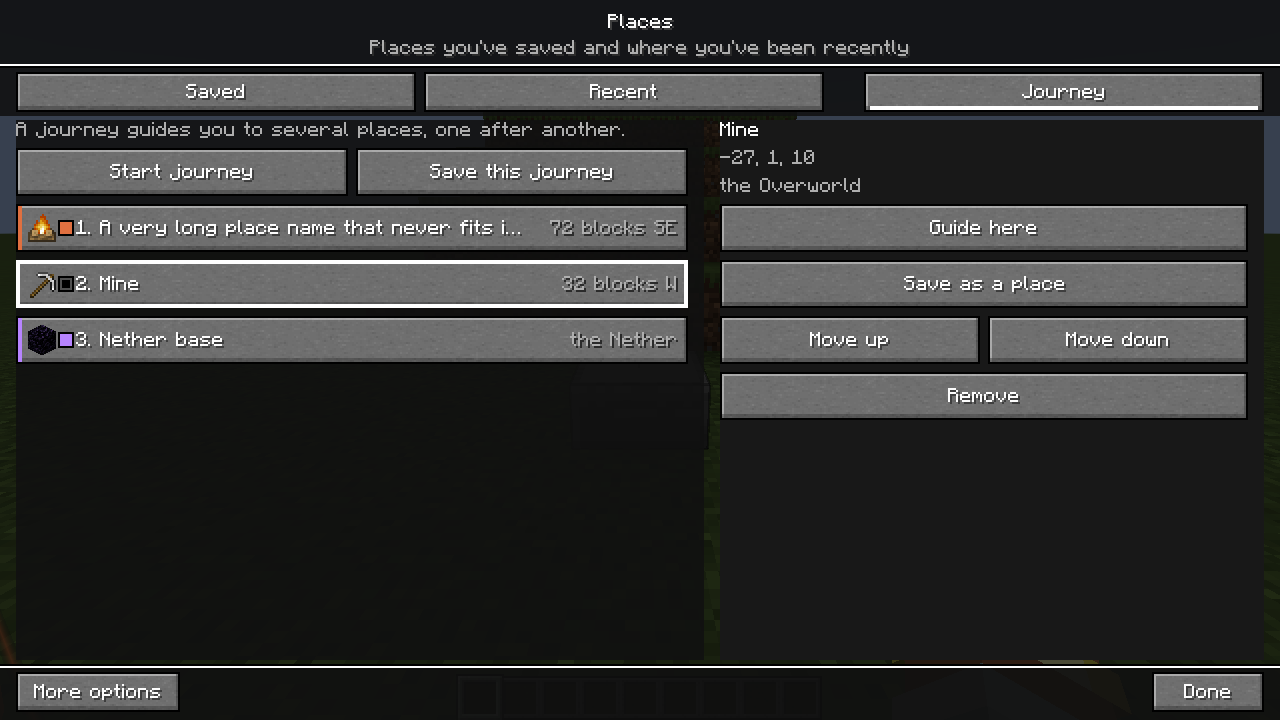
Once the journey starts, the first stop becomes your destination and leaves the list. While a journey is running, Start journey becomes Skip this stop, which moves on to the next stop straight away. After the last stop the journey ends. The journey holds up to 63 waiting stops; when it is full, Add to journey is greyed out until you remove one.
With no stops, the tab says “No stops yet. Add places from Saved or Recent.”
Choosing another destination yourself, for example Guide here, Go home or a map waypoint, pauses the journey’s automatic progress, but your waiting stops stay on the Journey tab. Stop guiding on the Lodestar menu ends the journey; any stops not yet reached also stay on the Journey tab, ready for Start journey.
A stop in another dimension uses a portal Lodestar has learned, if it knows one (Portals).
Save a journey
Section titled “Save a journey”Press Save this journey on the Journey tab. Lodestar saves the stops as “My journey” (or “My journey 2” and so on) and says where to find it: My outings → Saved journeys. You can keep up to 32 saved journeys, each with up to 64 stops.
Saved journeys
Section titled “Saved journeys”Open My outings and choose the Saved journeys tab. Each row shows a journey’s name and how many stops it has. Select one to see its first stops on the right, and whether it “Loops back to the first stop”.
| Button | What it does |
|---|---|
| Start | Guides you to each stop of this journey in order. Its stops replace any on the Places Journey tab. |
| Edit | Opens the journey to rename, reorder or loop it |
| Copy share code | Copies a code that lets a friend import this journey |
| Delete | Deletes this saved journey, after asking first |
Edit a journey
Section titled “Edit a journey”Edit opens the journey on its own screen:
- Journey name: the name shown in Saved journeys.
- Reverse: turns the journey around so the last stop comes first.
- Loop: when ticked, the journey goes back to the first stop after the last one, and keeps going round until you stop it.
- The numbered stops. Hover one, or move to it with the keyboard, to see its coordinates and dimension.
- Copy share code, as above.
Press Save to keep your changes, Start to set off, or Cancel to close without saving. If another saved journey already has the name you typed, Lodestar asks “Replace this saved journey?” first.
Changing the stops on the Places Journey tab while a looping journey runs ends the loop, so a stop you removed does not come back on the next lap.
Share codes
Section titled “Share codes”A share code is a line of text starting with LODESTAR1:. Send it to a friend however you like, for example in chat or a message.
Make a code: press Copy share code on a saved journey or in the journey editor. For a single place, turn on More options in Places, select the place, and press Copy share code. Lodestar says “Code copied.”
Use a code:
- Open My outings → Saved journeys and press Import a code at the bottom left.
- Paste the code into the Lodestar code field, or press Paste code.
- Press Preview journey.
- The Preview shared journey screen shows every stop. Rename, reverse or loop it if you like, then press Save to keep it under Saved journeys, or Start to set off. Cancel closes without importing.
Nothing is saved or started until you press Save or Start. A damaged or very long code shows “That code is invalid or too large.”
A code holds each stop’s coordinates, dimension, name, icon and colour, and whether the journey loops. It does not hold your world’s name, your server address or anything about you. The coordinates are only useful to a friend in the same world or on the same server.