Getting started
Lodestar Trail shows you the way to a place you choose: a glowing trail along the ground, a small fairy light that flies ahead, an arrow at the top of the screen, or any mix of the three. Everything happens in your own game. Nothing needs to be installed on a server.
Install
Section titled “Install”| Loader | Server |
|---|---|
| NeoForge | Not needed |
Download the Lodestar Trail file for your Minecraft version and NeoForge (its name starts with lodestar-trail-neoforge), put it in your game’s mods folder and start Minecraft. Lodestar is client only: it works in singleplayer, on LAN and on servers that do not have it installed. It adds no blocks or items and never changes the world.
Map mods are optional. See Map mods if you use JourneyMap or Xaero’s maps.
Open Lodestar
Section titled “Open Lodestar”Join a world and press Esc. A small star button sits beside the pause menu’s centre buttons (its tooltip says Open Lodestar). Press it to open the Lodestar menu. If another mod has taken that spot, the star moves to a free slot nearby or to the top right corner.
You can also bind the Open Lodestar key under Options → Controls → Key Binds → Lodestar Trail. Every Lodestar key starts unbound, so nothing clashes with your other mods. You never need a key or a command for everyday use.
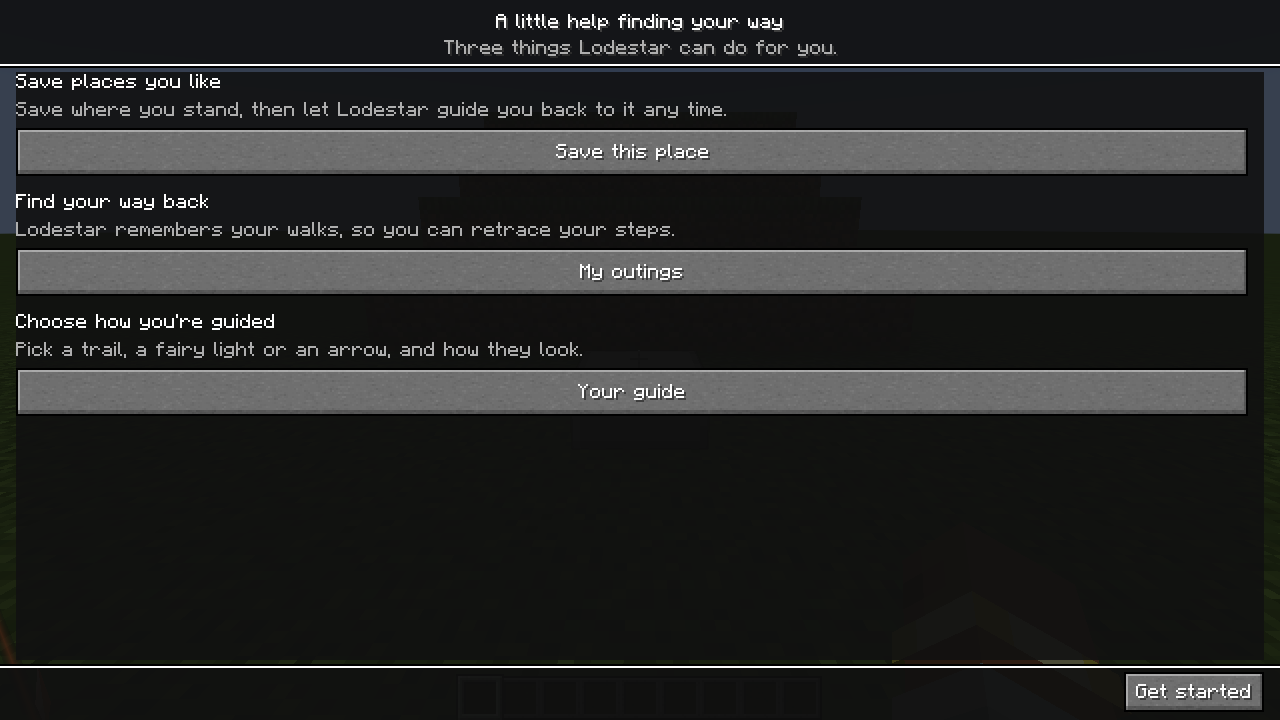
The first time you open Lodestar, a short welcome explains three things it can do: Save places you like, Find your way back and Choose how you’re guided. Each has a button that takes you straight there. Press Get started to continue to the menu. Show the welcome again, under More options, brings it back.
The Lodestar menu
Section titled “The Lodestar menu”The top line tells you what Lodestar is doing right now: Guiding you to a place with its distance, Retracing your steps, Guide paused or Not guiding anywhere. If the place is in another dimension, the line names that dimension instead of a distance.
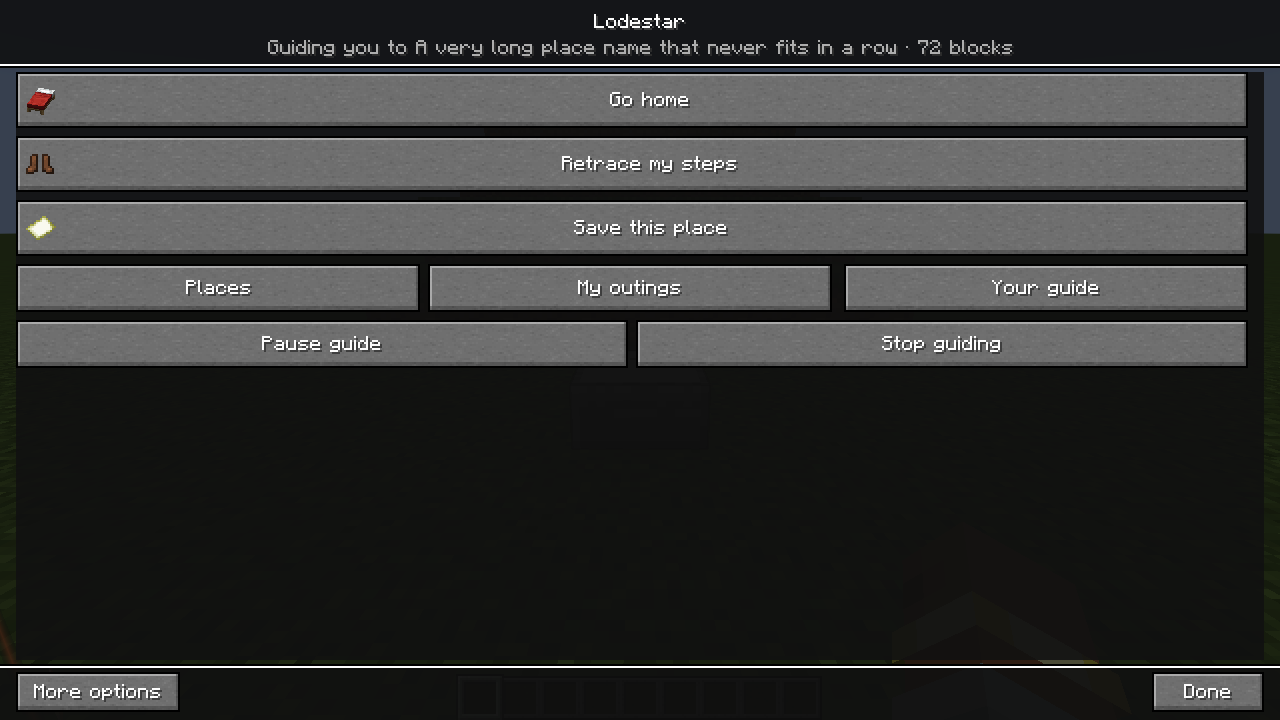
| Button | What it does |
|---|---|
| Set home here / Go home | Saves where you stand as Home, then guides you there whenever you like |
| Retrace my steps | Guides you back along your latest outing (My outings) |
| Save this place | Saves where you stand as a named place (Places) |
| Places | Your saved places, recent places and the journey |
| My outings | Your recorded walks, saved journeys and portals |
| Your guide | Which guides show you the way, and how they look (Your guide) |
| Pause guide / Resume guide | Hides the guide but keeps your destination, then shows it again |
| Stop guiding | Stops guiding and ends any journey or retrace; saved places and history are kept |
Pause guide and Stop guiding only appear while Lodestar has somewhere to take you. Done closes the menu.
More options
Section titled “More options”Every Lodestar screen has a More options button at the bottom left. It reveals extra settings on that screen, and Lodestar remembers your choice for every screen until you press Fewer options. On the Lodestar menu it adds Change home, Mark return point, Go back to return point and Show the welcome again.
Set home
Section titled “Set home”Stand where you want Home to be and press Set home here. Lodestar says “Home saved. You can find your way back any time.” From then on the same button reads Go home and guides you there.
To move Home, open More options and press Change home. Lodestar asks before replacing your old Home with where you stand now.
Home belongs to the world (or server) and to you. Each world has its own Home.
Save a place
Section titled “Save a place”Press Save this place. The editor opens with the name field ready: type a name, and optionally choose an icon and a colour (see Places). Press Save. The place appears under Places → Saved.
Choose a destination
Section titled “Choose a destination”- Press Places.
- Pick a place on the Saved or Recent tab.
- Press Guide here.
The menu closes and your guide appears. With the default settings that is a glowing trail along the ground. When you arrive, a small sparkle plays and the guide hides. It comes back if you walk away again.
Other ways to choose a destination:
- Go home or Retrace my steps on the Lodestar menu.
- A saved journey of several stops (Journeys).
- Guide with Lodestar in a supported map mod (Map mods).
- The Guide to looked-at block key, or typed commands (Quick guide and keys).
Next steps
Section titled “Next steps”- Change how you are guided in Your guide.
- Learn the quick guide wheel for one-key access to Home, Retrace, Save and Pause.
- Read the limits: Lodestar points the way, but it does not find a path around walls.